
That large PDF can be a pain when you need to send it or save space on your phone. You can compress a PDF for free online with Azlaan Tools, without signing up or uploading your file. Follow these steps to shrink it and check that the pages still look right.
We analyzed 46 comments and questions from Reddit, Quora and YouTube about Free PDF compression and found that 33% mentioned the risk of uploading files to external servers.
Step 1: Choose a Free, Browser-Based PDF Compressor
Pick a tool that runs in your browser, so you don’t need to install software. For sensitive paperwork, check how the file is handled before you start. Azlaan Tools PDF Compression processes files in your browser. Your PDF stays on your phone or computer, and the tool is free with no signup or fees.
That can suit a student preparing an assignment, a job applicant sharing a CV, or a small business owner sending an invoice. You can open the tool on a phone or computer and start with the PDF you already have. There’s no account to set up first.
Browser-based doesn’t always mean browser-local. Some online services send files to their servers for processing. Adobe Acrobat Online File Compressor compresses directly in your browser without software installation and supports browser-local processing. Azlaan Tools processes the file locally instead. For a general overview of how an online compressor works, see Adobe Acrobat Online File Compressor.
Before choosing, think about what the PDF contains. A public class handout may be fine for a server-based tool. A CNIC scan, bank statement, or signed form calls for more care. With browser-local processing, the file stays on your device while it’s being compressed.
Azlaan Tools is designed for everyday tasks in Pakistan, including document work for students, households, salaried workers, and job applicants. You can explore its free online tools for everyday tasks in Pakistan and choose a PDF compressor when keeping the file on your own device matters.
Step 2: Select Your PDF and Check File Limits
Open the compressor and select the PDF from your device. On a computer, use the file picker or drag the document into the upload area if the page supports it. On a phone, tap the file button and browse your downloads or document folder.
Check the file name before you continue. It’s easy to pick a scan with a similar name, especially if you’ve saved several versions. If you’re unsure, open the PDF first and confirm that it has the right pages.
Online tools can set different file-size or page-count limits. Read the message on the tool before starting, and check the PDF’s size in your device’s file details if the page doesn’t show it. There isn’t a universal limit that applies to every browser compressor. Check the limit stated by the service you choose.
If your file is too large for the tool you picked, don’t keep retrying without a plan. Try a trusted compressor with a suitable limit, or reduce the scan size before you compress it. For a document with extra pages, remove pages you don’t need only if you’re allowed to change the file.
Make sure the file is a PDF. A photo or Word document isn’t the same file type, even if it shows the same content. Convert it to PDF first using a suitable tool, then select the resulting PDF for compression.
Azlaan Tools’ PDF compressor works best with scanned documents, bills, and other image-heavy PDFs. If you’re preparing paperwork for a job application, keep an unchanged copy of the original until you’ve checked the smaller file.
If the PDF is password-protected, don’t try to bypass its security. Use an authorised copy and follow the document owner’s instructions. If a tool can’t open it, ask the owner for a version you’re permitted to process.
Step 3: Set Compression to Balance File Size and Quality
Choose the setting based on how the PDF will be used. A smaller file can be easier to send, but strong compression may make scanned text harder to read. Start with a middle setting, then inspect the result before you decide it’s ready.
Azlaan Tools gives you three settings. Low quality makes the smallest file. Medium aims for a balance. High quality keeps pages clearer, with a larger output than the low setting may produce. The tool re-renders each page as a compressed image and rebuilds the PDF.
That method suits scanned forms, utility bills, and image-heavy documents. It has an important trade-off: the pages become images, so the text won’t be selectable in the compressed PDF. If you need to copy text, search within the document, or use a screen reader’s text features, keep the original or choose a workflow that preserves text.
A text-based PDF may not shrink much with this method. If the file is mostly typed text rather than page images, the source file may already be compact. Try the available settings and compare the output instead of assuming a lower quality setting will always make it smaller.
Adobe describes its own online compression choices as High, Medium, and Low. It also notes that compression can reduce image resolution and remove unused metadata. Those settings belong to Adobe’s tool, while Azlaan Tools uses its own three quality levels. A setting with the same name doesn’t promise the same result across tools.
For a scanned PDF, first ask whether colour is needed. A black-and-white form scanned in colour may contain extra image data that adds weight. If you’re allowed to change the document, make a greyscale copy before compression. Keep the original, especially if colour details matter for review.
Azlaan Tools is free with no signup or fees. That covers access to the tool, not any costs connected with the document itself, such as printing or delivery. Pick the smallest setting only when the finished pages remain clear enough for their intended use.
For instructions on a specific target size, the guide to compressing a PDF to 1 MB can help you plan what to check. A target is a goal, not a promise: the final size depends on the file’s content and the settings you choose.
Step 4: Compress the PDF and Check the Result
Start compression after you’ve chosen a quality level. Keep the page open while the tool works. Because Azlaan Tools processes the file in your browser, the speed can depend on your device and the number of pages. A large scan may take longer than a short form.
When processing finishes, compare the original and compressed sizes. Check whether the new file is smaller. If it’s larger, try the low setting, as the tool’s instructions recommend. Some text-based PDFs may not shrink much because the pages aren’t large images that need re-rendering.
Don’t judge the result by file size alone. Open the compressed PDF and inspect a few pages at normal viewing size. Check small print, handwritten notes, stamps, signatures, and any CNIC or passport details that must remain legible. Zoom in if needed, but also look at how the page reads on a phone.
For a scanned bill, check the reference number and amount. For a student assignment, check diagrams and page order. If a signature or fine text looks blurred, go back and use a higher-quality setting. The smaller file isn’t useful if the person receiving it can’t read the key details.
OCR is text recognition that can make a scanned page searchable. Azlaan Tools’ image-based output makes page text non-selectable, so don’t rely on this compressor to preserve searchable text. Keep an OCR-ready original if you need to find words later or copy text into another document.
Compression may not help much if the PDF has already been compressed. In that case, repeated runs can offer little benefit. Try a higher-quality setting if the first output looks poor, or use a smaller target only when readability still holds up.
One more check: compare every page count and the order of the pages. If you’re sending a signed form or a document with several attachments, make sure nothing is missing before you share it.
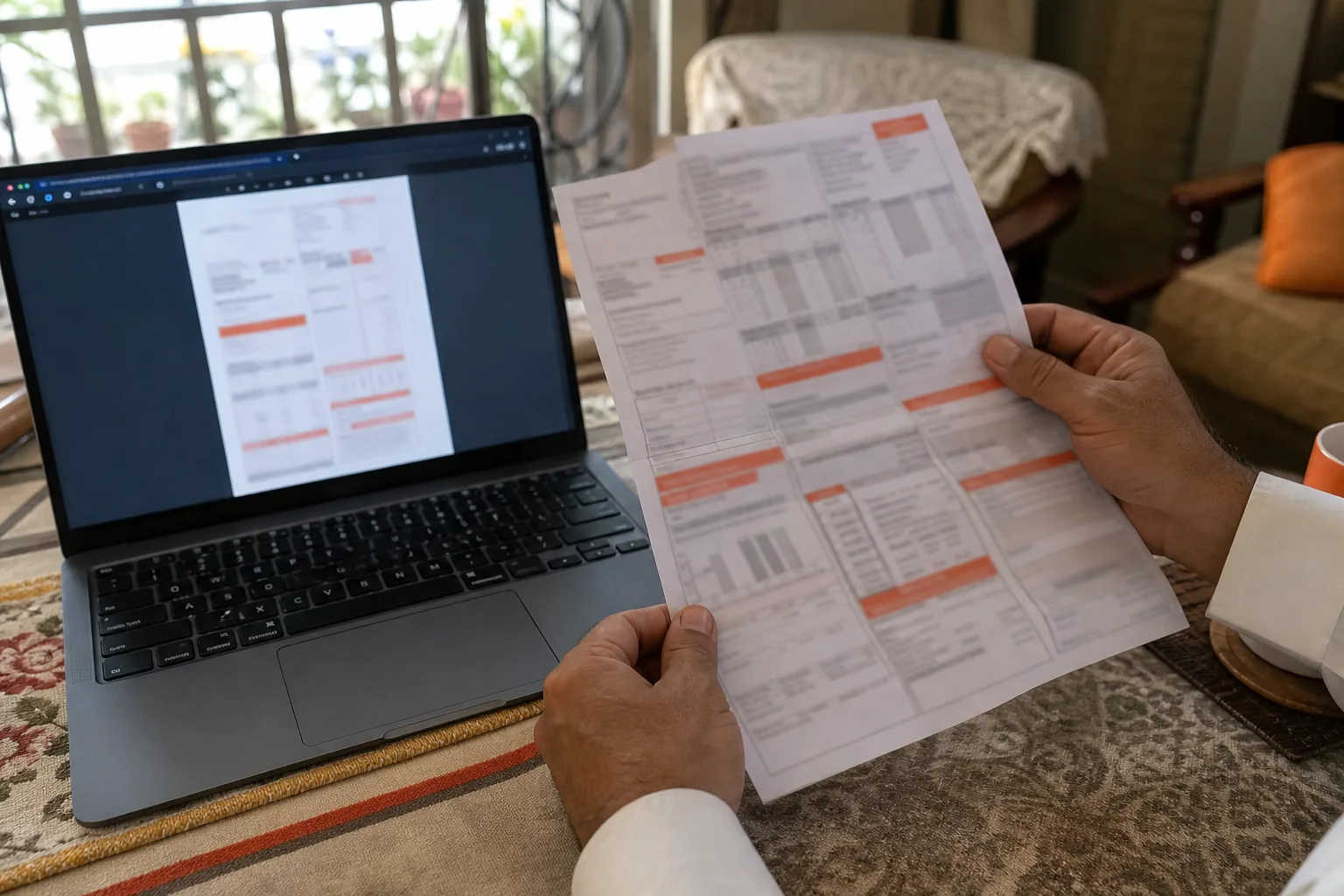
Step 5: Download, Verify and Use Your Smaller PDF
Download the compressed PDF only after the preview looks right. Save it in a folder you can find again, then open the downloaded file itself. A successful download doesn’t prove that every page is clear or that the file opens as expected.
Check the page count and the first and last pages. Then review any page with small text or a signature. If the file is for an online form, check the recipient’s size rule before uploading. If you’re attaching it to an email, confirm that the new file fits the limit shown by your email service.
A smaller PDF can also take up less space in cloud storage or be easier to send over a mobile connection. Still, don’t delete the original straight away. Keep it until the recipient confirms they can open the compressed version, especially when the file is important.
Use a clear file name that tells you which copy is which. For example, add compressed to the end of the new file name. This helps when you later need the original for printing, editing, or reading text that became part of an image.
If you’re preparing a PDF for a job application or school submission, open the copy you plan to submit and check the required details one last time. That final check catches the wrong file, missing pages, or small text that didn’t survive compression.
If you need a tighter target, read the Pakistan-focused guide to reducing a PDF to 1 MB before you try again. Use a target only when the resulting file remains clear and complete.
Azlaan Tools keeps access free, with no signup or fees. The browser-local processing applies to its PDF compression tool; it doesn’t mean every service on the site, such as an external bill-check page, handles files the same way.
Frequently Asked Questions
How do I compress a PDF for free online?
Choose a free browser-based compressor, select your PDF, set a quality level, and start compression. Then download the result and open it to check the pages. Azlaan Tools is free with no signup or fees, and its PDF compressor processes the file in your browser rather than uploading it.
Will compressing a PDF make the text blurry?
It can, especially when you use a low-quality setting on a scanned document. Check small print, signatures, and stamps after compression. If they look unclear, use a higher-quality setting and try again. Keep the original so you can return to it if the compressed copy loses detail.
Can I compress a scanned PDF and keep searchable text?
Azlaan Tools’ compressor turns each page into a compressed image, so text in the output won’t be selectable. Keep the original if you need to search or copy text. OCR can add searchable text to a scan, but this compressor’s output should not be treated as an OCR-ready document.
Is it safe to compress a PDF in a browser?
It depends on how the tool handles your file. Azlaan Tools processes PDFs in your browser, so the file stays on your device during compression. Other online compressors may upload documents to their servers. For sensitive files, check the tool’s privacy information and use a browser-local option.
Why did my compressed PDF get bigger?
A PDF may grow if its content doesn’t suit the tool’s compression method. Azlaan Tools re-renders pages as images, which works best for scanned and image-heavy PDFs. If the result is larger, try the low setting, as the tool advises. Keep the version that is both readable and smaller.
Conclusion
For a private document you want to shrink without signing up, start with Azlaan Tools PDF Compression. Choose a quality level, compress the file, then open the downloaded copy and check its pages before you send it.