A large PDF can stop an upload or clog up a message attachment. You can reduce a PDF’s size for free in your browser, without installing software or signing up.
We analyzed 35 comments and questions from YouTube and Quora about reducing PDF size for free and found that 31% mentioned file size limits.
Use Azlaan Tools for browser-local compression, then compare the new file with your original before you send it.
Step 1: Check the PDF’s size and what is making it large
First, note the current file size and work out what kind of PDF you have. That gives you a fair way to judge the result, and helps you choose a setting that won’t make the pages hard to read.
On a phone, open your file manager and check the PDF’s details. On a computer, use the file’s properties or information panel. Write down the size in KB or MB. If a portal has a limit, note that too. You’ll need the final file to fit below it.
Next, open the PDF and look through a few pages. A document made from scanned pages or photos often has large image files inside it. A text-based assignment or CV may already be small, so compression may save less space. A PDF with many detailed diagrams or photos can also need a stronger setting.
Check whether you need to keep text selectable. If you scan a signed form or a printed bill, the pages may already be images. If you have a CV or assignment with selectable text, be careful with a tool that rebuilds each page as an image. That can make the words harder to search or copy.
For related PDF tasks, Azlaan Tools has a PDF preparation, editing and conversion section. Keep your original file unchanged so you can compare it after compression.
Milestone: You should know the original size, any upload limit and whether the PDF is mostly text or images.
Step 2: Choose a free PDF compressor and check its privacy
Pick a browser tool that fits both your file and your privacy needs. Azlaan Tools is free, has no signup or fees, and its PDF compressor processes your file in your browser. The document stays on your phone or computer. Nothing is uploaded.
That distinction matters when you’re handling a CV with personal details, a student record, a signed form or a work document. Many online compressors send files to a server for processing. Check the tool’s privacy details before you choose one, especially if the PDF contains CNIC information or business records.
Azlaan Tools’ compressor is built for scans and image-heavy PDFs. It re-renders each page as a compressed image and then rebuilds the PDF. This can shrink scanned bills, forms or notes. But text-based PDFs may not get much smaller, and text in the new file won’t be selectable.
To start, open the free online PDF compressor in your browser. Choose the file picker or drag your PDF into the upload area. The page shows the original size and page count before you compress it. You don’t need to install an app.
Use a browser-based tool when you want to finish a single file without sending it to a remote server. If you need to handle a group of files, check that the tool supports batch processing before you begin. For Azlaan Tools, work through files one by one.
Milestone: Your file is ready in the browser, and you’ve checked that local processing suits the document.
Step 3: Select a compression level and reduce the PDF
Choose the setting that fits the job, then run compression. A lower-quality setting usually aims for a smaller file, while a higher-quality setting keeps the pages clearer. The best choice depends on what you need to share.
In Azlaan Tools, choose a compression level before you start. Low quality makes the smallest file. Medium balances size and clarity. High quality keeps pages clearer, but the result may be larger. If you’re sending a scanned form through a portal with a strict limit, try Low. For study notes you’ll read on a phone, start with Medium.
Then select Compress PDF and let the browser process the pages. Keep the tab open while it works. Once the result appears, check the new size and the percentage saved. Download the compressed copy rather than replacing your original.
Don’t expect the same size reduction from every PDF. A scan packed with photos may shrink more than a clean document made mostly of text. If Medium doesn’t get the file under the limit, try Low next. If the pages become blurry, return to the original and use High instead.
Compression can change what’s inside a PDF. Adobe explains that its online compressor can reduce image resolution, flatten interactive layers and remove unused metadata. Those are ways to save space, but they can affect image detail or interactive parts of a document. See Adobe’s explanation of PDF compression for the types of changes its tool may make.
There isn’t one setting that suits every file. A CV should stay crisp enough to read on a phone. A photo-heavy handout may need a smaller file more than fine image detail. Pick the setting based on how the recipient will use the document.
Milestone: You should have a downloaded copy and know its new size. Don’t send it until you’ve checked the pages.
Step 4: Compare the compressed PDF with the original
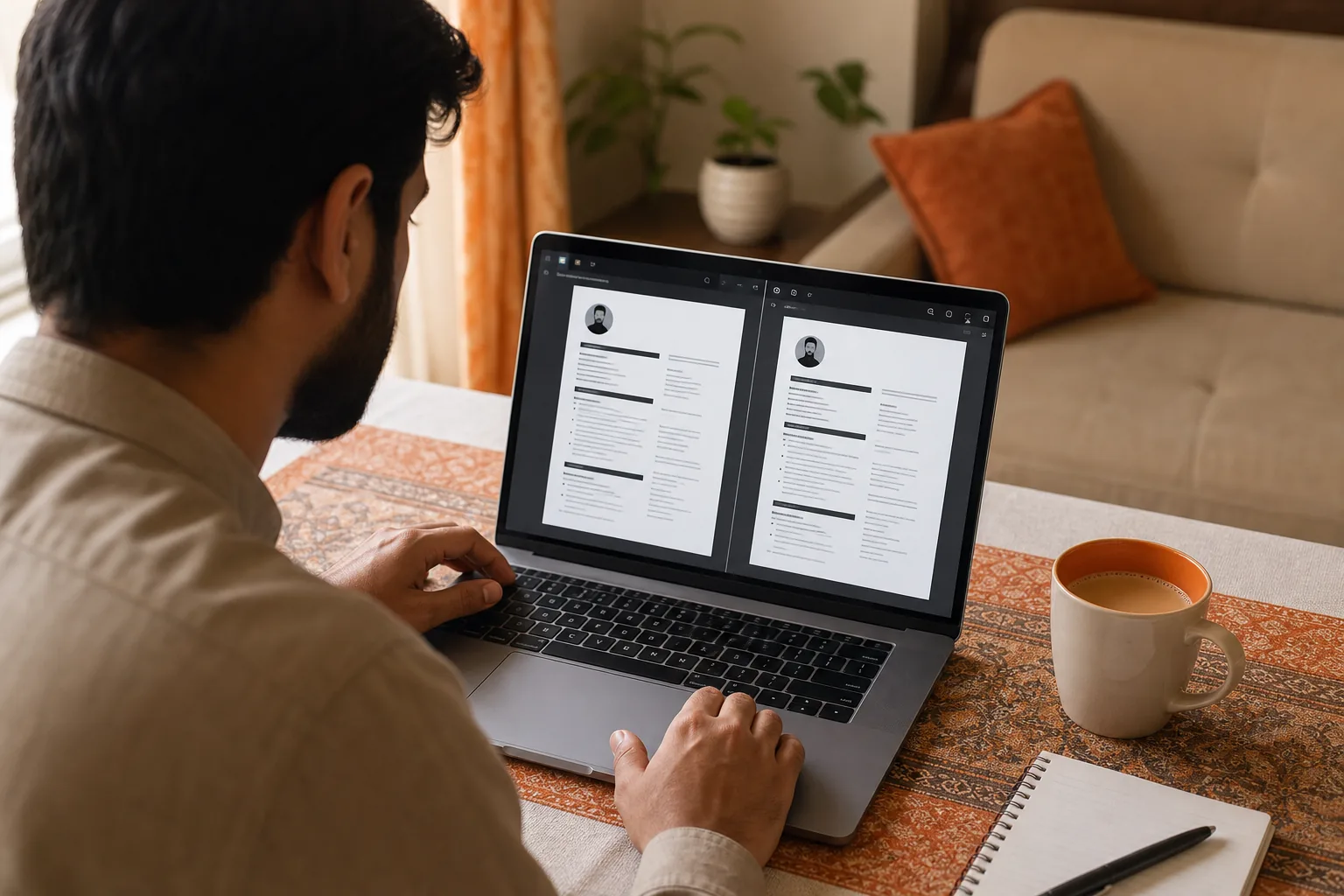
Open both files and check whether the smaller copy still works for its purpose. A size number alone can’t tell you if a signature has blurred or a chart has become hard to read.
Look at the first page, then check a page with small print or a detailed image. Zoom in to read the text. If the PDF has a signature, stamp, CNIC image or important diagram, inspect that part too. On a phone, check the page at the size you’ll actually use. A file that looks fine when enlarged on a computer may be awkward to read on a small screen.
Compare the file sizes in your file manager. If the compressed copy is smaller and clear enough, keep it for sharing. If it’s still too large, try a lower setting. If the quality has dropped too far, use a higher setting or keep the original.
Check whether text still behaves as text. Try selecting a sentence or searching for a word. If you can’t select it, the tool may have rebuilt the pages as images. That can be fine for a scanned bill, but it may not suit an assignment or CV that someone needs to search or copy.
Adobe notes that compression may lower image resolution, so inspect photos and fine lines closely after processing. Its PDF compression guidance describes this trade-off between file size and detail. Your own check is still the useful test: open the pages you need to read and make sure they remain clear.
If you need to send several PDFs as one attachment, combine them before sharing with Azlaan Tools’ Merge PDF tool. Keep a separate original copy of each document before merging.
Milestone: The compressed PDF fits your size limit and remains readable on the device your recipient is likely to use.
Step 5: Troubleshoot a PDF that is still too large
If your PDF is still over the limit, check what kind of pages are taking up space before trying again. The fix for a scanned bill may differ from the fix for a text-based CV.
Try a lower setting for scans
Scanned pages are image-based, so they can take up more space than plain text. Run the file again at Low quality and compare the result. Check small print and stamps before you use it. If the words turn fuzzy, switch back to Medium or High.
Check whether the PDF is already small
A text-heavy file may have little room to shrink. If the size barely changes, avoid repeating the same process at stronger settings without checking quality. You may get only a small size reduction while making the pages harder to read.
Review each page before compressing again
Look for pages with large photos or scans that don’t need to be included. If a document contains extra pages, make a copy and remove only the pages you’re sure the recipient doesn’t need. Keep the full original for your records.
Azlaan Tools’ compressor rebuilds pages as images. That suits scans, bills and other image-heavy files, but it can remove selectable text. If you need to search or copy the words later, keep the original text-based PDF or use a different workflow for that file.
For a very large PDF, check the tool’s file-size limit before you begin. Azlaan Tools supports files up to 2 GB. If your file is within that limit but still won’t process, check your internet connection and available device memory, then try again in a current browser. Local processing happens on your device, so a phone may take longer than a computer with more memory.
Don’t keep lowering quality just to hit a size target if the result becomes unreadable. Ask the recipient whether they accept a slightly larger file or a separate set of pages. That can be safer than sending a document where key details are blurred.
Milestone: You’ve tried the appropriate setting and confirmed that the final file is both small enough and usable.
Frequently asked questions about reducing PDF size for free
How can I reduce a PDF size for free without installing software?
Use a browser-based compressor that works on your device. With Azlaan Tools, open the compressor, select your PDF, choose a quality level and start processing. The tool is free with no signup or fees, and files are processed in your browser. Download the new copy, then check it before sharing.
Can I compress a PDF on my phone?
Yes, you can use a browser-based compressor on a phone. Open the PDF tool in your mobile browser, choose the file from your device and download the compressed version when it’s ready. Check that the new file opens from your downloads or file manager, and zoom in to confirm the pages are readable.
Why did my PDF barely get smaller?
A PDF made mostly of text may already be compact, so compression might not save much space. Scans and image-heavy pages often have more room to shrink. Try a lower quality setting only if the pages still look clear, and compare the output with your original before sending it.
Will compressing a PDF make its text unselectable?
It can, depending on the tool and method. Azlaan Tools rebuilds each page as a compressed image, so text in its compressed PDF won’t be selectable. That works well for scanned forms or bills, but keep the original if you need to search, copy or edit the text later.
What is the maximum PDF size Azlaan Tools can process?
Azlaan Tools supports PDF files up to 2 GB. The time needed can depend on the file and the device doing the work, since processing happens in your browser. Keep the tab open while compression runs, and check the finished file before you share it.
Conclusion
For a scanned bill, form or assignment, start with Azlaan Tools’ free, no-signup browser compressor and choose Medium quality. Download the result, inspect the pages you need, then use that copy only if it stays clear enough to read.